Damien Ramirez (CG)
3D Generalist - Advisor
How To: Quixel Mixer Channel Packing
A very quick tip since not many can figure it out & claim you need to use Quixel Bridge to do exports from Mixer.
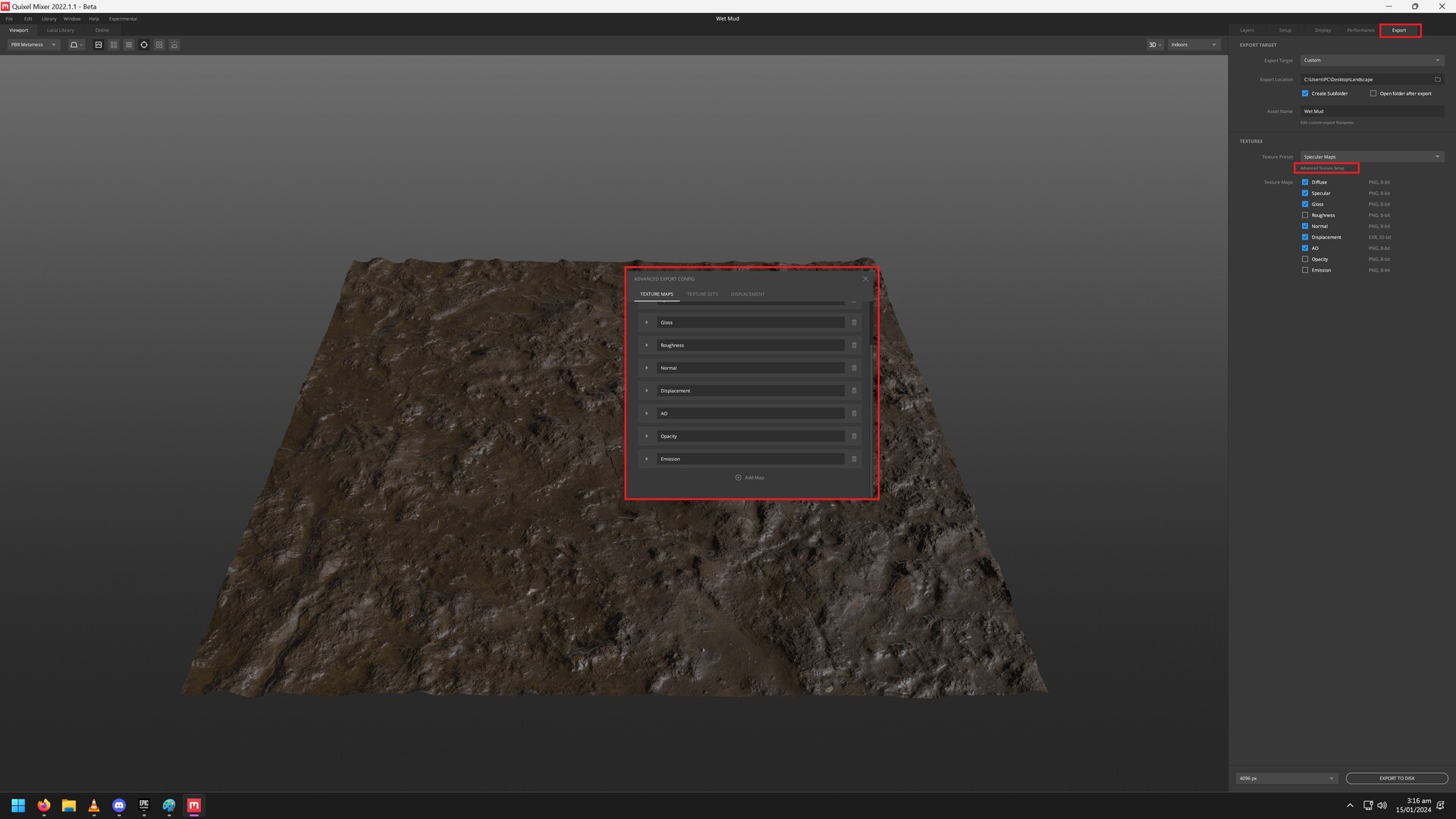
Under Export>Textures, There is some very tiny non highlighted text "Advanced Texture Setup" You click on that to bring up the export options, from there add new map & this is where you set up the channel packing.

Tip 1: If changing from Diffuse to Albedo manually make sure its Gamma not linear or you wont see any colours.

Tip 2: 16bit PNG is ideal if making a ARD export since Displacement ideally should be high quality 16-32bit (In my opinion). AO & Roughness should be fine at 8bit for normal exports.